


블로그 개발 - Gatsby에서 이미지 처리하기
2024.05.29.


Gatsby에서 이미지 처리
블로그에서 사용되는 이미지의 종류는 크게 2가지로 나눌 수 있다. 로고와 같이 동일하게 유지되는 이미지, 그리고 블로그의 썸네일과 같이 컨텐츠에 따라서 가변적인 이미지로서 이 두 가지를 잘 구분하여 사용할
필요가 있다.
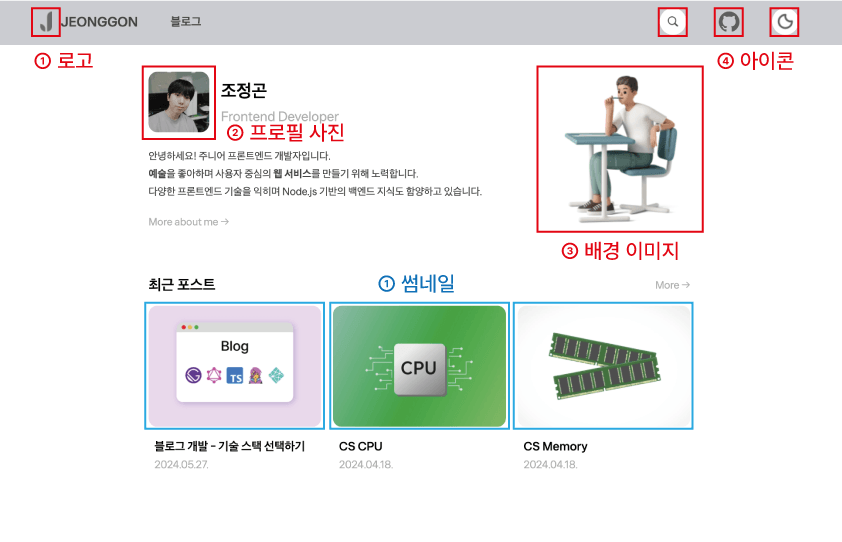
블로그 메인 페이지의 이미지 분류
예시로서 위의 블로그 페이지를 살펴보면 로고, 프로필 사진, 배경 이미지, 버튼의 아이콘들은 변하지 않는 요소이다.
반면, 캐로젤의 포스트의 썸네일은 동일한 컴포넌트를 사용하지만 각각 다른 것을 알 수 있다.
그렇다면 이미지를 적용하는 방법에 어떠한 차이점이 있을까?
1. Gatsby의 이미지 프로세싱
Gatsby는 이미지 최적화를 위한 플러그인들을 제공한다. 대표적으로 gatsby-plugin-image가 있으며, 이 플러그인은 최적화 된 이미지 로딩을 통해 빠른 로딩 속도를 보장할 수 있다.
1-1. gatsby-plugin-image의 주요 기능
- 이미지 최적화 : 필요한 형식과 크기로 이미지를 로드할 수 있다.
- lazy-loading : 저해상도의 썸네일을 우선적으로 로드하고 이후, 고해상도 이미지로 교체한다.
- WebP 지원 : WebP 형식의 이미지는 압축률이 높아 로딩 속도에 우수하며, 이를 지원한다.
- 해상도 맞춤 : 고해상도 화면에 맞추어 이미지를 제공한다.
2. 이미지를 위한 플러그인 설정
- 필요한 플러그인으로
gatsby-plugin-image와 함께gatsby-plugin-sharp,gatsby-transformer-sharp를 설치해야한다.
gatsby-plugin-sharp: 빌드 시, 이미지를 최적화하고 변환한다.gatsby-transformer-sharp: gatsby-plugin-sharp에서 처리한 이미지를 GraphQL 쿼리를 통해 변환하고 최적화한다. (동적 이미지를 위해 필요함)
$ npm install gatsby-plugin-image gatsby-plugin-sharp gatsby-transformer-sharp- gatsby-config.js에 설치한 플러그인을 추가하기
// gatsby-config.js

module.exports = {
  plugins: [
    `gatsby-plugin-image`,
    `gatsby-plugin-sharp`,
    `gatsby-transformer-sharp`
  ]
}- gatsby-plugin-sharp의 옵션으로 자세한 설정하기
- 지원할
형식(formats)과,품질(quality),lazy-loading을 어떤 방식으로 할지(placeholder)등 여러 옵션을 제공한다.
// gatsby-config.js

module.exports = {
  plugins: [
    `gatsby-plugin-image`,
    {
      resolve: `gatsby-plugin-sharp`,
      options: {
        defaults: {
          formats: ['auto', 'webp'],
          quality: 100,
          placeholder: 'dominantColor',
        },
      },
    },
    `gatsby-transformer-sharp`
  ]
}
3. StaticImage - 정적 이미지
StaticImage 컴포넌트는 로고와 같은 정적 이미지를 처리하는데 사용된다. 정적 경로를 사용하며, 빌드 과정에서 이미지를 최적화한다.
쿼리없이 기존 HTML의 img 태그와 같이 간단하게 사용할 수 있는 장점이 있다.
// StaticImage 컴포넌트 사용 예시

import React from "react";
import { StaticImage } from "gatsby-plugin-image";

const MyComponent = () => (
  <div>
    <h1>정적 이미지</h1>
    <StaticImage
      src="../images/my-image.jpg"
      alt="내 정적 이미지"
    />
  </div>
);

export default MyComponent;
4. GatsbyImage - 동적 이미지
GatsbyImage는 썸네일과 같은 가변적인 이미지를 처리하는 컴포넌트로 Gatsby에서 GraphQL 쿼리를 통해 받아온 이미지 데이터를 렌더링할 때 사용된다.
// GatsbyImage 컴포넌트 사용 예시

import React from "react";
import { graphql } from "gatsby";
import { GatsbyImage, getImage } from "gatsby-plugin-image";

// 2. 쿼리한 데이터 객체를 data라는 이름의 props로 받기
const MyComponent = ({ data }) => {
  // 3. 데이터 객체에서 image 가져오기
  const image = getImage(data.file.childImageSharp.gatsbyImageData);
  return (
    <div>
      <h1>동적 이미지</h1>
      <GatsbyImage
        image={image}
        alt="내 동적 이미지"
      />
    </div>
  );
};

// 1. GraphQL로 이미지 데이터 쿼리하기
export const query = graphql`
  query {
    file(name: {eq: "my-image.jpg" }) {
      childImageSharp {
        gatsbyImageData(width: 24, height: 24)
      }
    }
  }
`

export default MyComponent;
5. 비교 정리
| 특징 | StaticImage | GatsbyImage |
|---|---|---|
| 데이터 종류 | 정적 이미지 (프로젝트의 파일) | 동적 이미지 (쿼리한 데이터) |
| 복잡도 | 간단함 | 상대적으로 복잡함 (GraphQL 쿼리 필요) |
| 사용하는 속성 | 컴포넌트에서 src 속성을 사용함예시) src=“../images/my-image.jpg” |
컴포넌트에서 image 속성을 사용함예시) image={image} |
6. 이미지 처리 결과물
이미지 처리의 결과물을 보면 아래의 모습과 같다. gatsby-config.js에서 gatsby-plugin-sharp 플러그인 설정 시, placeholder: 'dominantColor' 옵션을 두었기 때문에
로딩 될 때, 이미지의 주요 색상을 먼저 로드한 뒤, 최적화된 이미지로 전환되는 것을 확인할 수 있다.

이미지 처리를 통한 lazy-loading (dominantColor)
gatsby-plugin-sharp에서 placeholder: 'blurred' 옵션을 사용할 경우, 아래와 같이 blur 방식의 트랜지션으로 로딩된다.

이미지 처리를 통한 lazy-loading (blurred)
7. StaticImage 컴포넌트와 절대 경로
StaticImage를 사용하면서 src 속성에 상대 경로로 src="../../../../static/my-image.jpg"와 같이 이미지를 지정해주었는데 상대 경로가 아닌 절대 경로를
지정하여 src="src/static/my-image.jpg"처럼 좀 더 간결하게 작성하는 방법이 없을까? 고민이 되어 자료를 찾아보았고, gatsby 오픈소스 레포지토리에 나와 동일한 생각을 했던 사람의
Issue를 볼 수 있었다.
gatsby-plugin-image 플러그인에서 제공하는 StaticImage 컴포넌트의 경우, 기본적으로 절대 경로를 지원하지 않고 상대 경로를 사용하는 것을 권장하고 있다.
이는 빌드 프로세스와 이미지 최적화처리의 일관성을 유지하기 위함이라고 한다.
Allow “absolute path” and/or aliases usage with StaticImage #35667
고로 상대 경로를 사용하자.
8. StaticImage 컴포넌트와 스타일링
Emotion.js로 블로그를 제작하였기에 Styled Component를 통해 StaticImage를 스타일링하려고 아래 예시 코드처럼 시도했었다.
// styled component로 StaticImage 컴포넌트 스타일링 하기

import { FC } from 'react'
import styled from '@emotion/styled';
import { StaticImage } from 'gatsby-plugin-image';

// StaticImage 컴포넌트 가져와서 스타일링하기
const StyledStaticImage = styled(StaticImage)`
    width: 100px;
    height: 100px;
`;

const MyComponent: FC = () => {
  return (
    <>
      {/* 스타일링된 컴포넌트 사용하기 */}
      <StyledStaticImage src={"../../../static/my-image.jpg"} alt={"스타일링된 정적 이미지"} />
    </>
  );
};

export default MyComponent;
하지만, 일반 StaticImage 컴포넌트를 사용하면 이미지가 출력되지만, Styled Component로 가공할 경우, 이미지가 출력되지 않았다.
이와 동일한 문제를 Stack overflow에서 찾을 수 있었다.
Is it possible to style StaticImage with styled-components in Gatsby?
Gatsby 문서
“The StaticImage component does not support higher-order components, which includes the styled function from libraries such as Emotion and styled-components. The parser relies on being able to identify StaticImage components in the source, and passing them to a function means this is not possible.”
이유를 설명하면, Gatsby에서는 StaticImage 컴포넌트를 그대로 사용해야 StaticImage 컴포넌트를 식별하여 처리할 수 있기 때문에 Styled Component를 사용한 고차 컴포넌트( Higher-Order-Components, HOC)를 사용하면 Gatsby가 처리 할 수 없기 때문이다.
그렇다면 StaticImage 컴포넌트를 스타일링하려면 어떻게 해야할까?
- 스타일 속성을 사용하기
<StaticImage
  src="../../../static/my-image.jpg"
  alt="my-image"
  style={{
    display: 'block',
    width: '100px',
    height: 'auto'
  }}
/>
하지만 Emotion.js를 사용하고, 인라인 스타일링을 지양하기 때문에 다른 방법을 사용하였다.
- css의 props로 사용하기
import { css } from '@emotion/react';

const staticImageStyle = css`
    display: block;
    width: 100px;
    height: 100px;
`;

<StaticImage
  src="../../../static/my-image.jpg"
  alt="my-image"
  css={staticImageStyle}
/>TypeScript를 사용할 경우, StaticImage의 속성으로는 css가 없기 때문에 static-image.server.d.ts에서 css 속성을 받을 수 있도록 아래와 같이 수정해야한다.
먼저, IPrivateProps에 css?: SerializedStyles; 타입을 추가한다.
그리고, StaticImage의 타입 정의에 css?: SerializedStyles; 속성을 추가한다.
이렇게 정의해주면 타입에러가 발생하지 않는다.
// static-image.server.d.ts

import React, { FunctionComponent } from "react";
import { GatsbyImageProps, IGatsbyImageData } from "./gatsby-image.browser";
import PropTypes from "prop-types";
import { ISharpGatsbyImageArgs } from "../image-utils";

export interface IStaticImageProps extends Omit<GatsbyImageProps, "image">, Omit<ISharpGatsbyImageArgs, "backgroundColor"> {
  src: string;
  filename?: string;
}

interface IPrivateProps {
  __imageData?: IGatsbyImageData;
  __error?: string;

  // css 타입 추가
  css?: SerializedStyles;
}

export declare function _getStaticImage(GatsbyImage: FunctionComponent<GatsbyImageProps>): React.FC<IStaticImageProps & IPrivateProps>;

declare const StaticImage: React.FC<IStaticImageProps & IPrivateProps>;
export declare const propTypes: {

  // css 속성 추가
  css?: SerializedStyles;

  src: PropTypes.Validator<string>;
  alt: PropTypes.Validator<string>;
  width: PropTypes.Validator<number>;
  height: PropTypes.Validator<number>;
  sizes: PropTypes.Requireable<string>;
  layout: (props: IStaticImageProps & IPrivateProps) => Error | undefined;
};
export { StaticImage };
//# sourceMappingURL=static-image.server.d.ts.map
9. SVG 파일과 GatsbyImage
확장자 중 SVG 확장자의 경우, 벡터 파일 포맷으로서 픽셀을 사용하는 래스터 포맷과 달리 해상도가 깨지지 않고 선명하다는 장점이 있다.
따라서 SVG 파일도 GraphQL로 쿼리하여 GatsbyImage로 사용할 수 있을까? 하는 궁금증이 들었다.
시도를 해보았으나, 이미지를 불러올 수 없었다.
해당 이슈 : https://github.com/gatsbyjs/gatsby/issues/10297
이는 gatsby-plugin-image에서 SVG 확장자를 지원하지 않아 컨트롤 할 수 없기 때문이다. 추가적으로 GIF 이미지도 이용이 불가능하며 png, jpg 등의 이미지만 활용이 가능하다.
따라서, SVG 파일을 활용할 경우, StaticImage 컴포넌트로 처리해야 한다.
Sources
- Gatsby 공식 문서 : gatsby-plugin-image
https://www.gatsbyjs.com/plugins/gatsby-plugin-image/
- Emotion.js 공식 문서 : Composition
https://emotion.sh/docs/composition
- JeonggonCho_Blog 템플릿 레포지토리


조정곤
주니어 프론트엔드 개발자


Blog 포스트 (17)